Table of Contents
An Amazon gift card is one of the simplest ways to keep your Kindle library growing without reaching for a credit card. Once you know how to use an Amazon gift card on Kindle, the balance works like cash across the whole Amazon ecosystem – ebooks, audiobooks, magazines, and even a Kindle Unlimited subscription.
This guide walks you through redeeming the card to your account, applying the balance at checkout, and confirming it actually covers your purchase.
You will also learn what to do when a card refuses to work because it was issued for another country, and how to turn that idle, region-locked balance into spendable cash.
How to Redeem Your Amazon Gift Card
You are able to add your Amazon gift card balance to your Amazon account after redemption. From that point, Amazon pulls from this balance automatically whenever you buy Kindle content, so there is no separate “Kindle wallet” to manage.
You only redeem once, and the balance syncs across every device signed in to your account.
1. Redeem via Amazon.com (Web Browser)
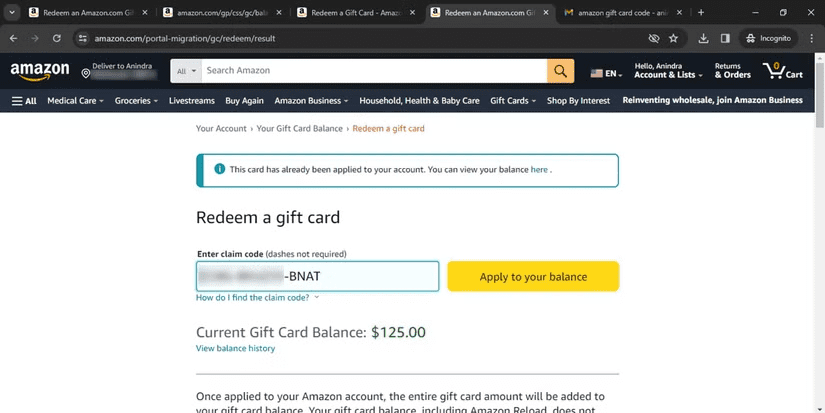
The fastest way to redeem an Amazon gift card on Kindle content is through the Amazon website:
- Sign in to your Amazon account at the storefront for your country.
- Open Account – Gift Cards, then select Redeem a Gift Card.
- Enter the claim code. On a physical card, it sits on the back under the scratch-off panel; on a digital card, it arrives in your confirmation email.
- Select Apply to your balance to load the funds.
Note: Type the code carefully – a few characters trip people up, especially the letter “O” versus zero and the letter “I” versus the number one.
You can confirm the new total any time under Gift Cards & Promotional Codes.
2. Redeem Directly on Your Kindle Device
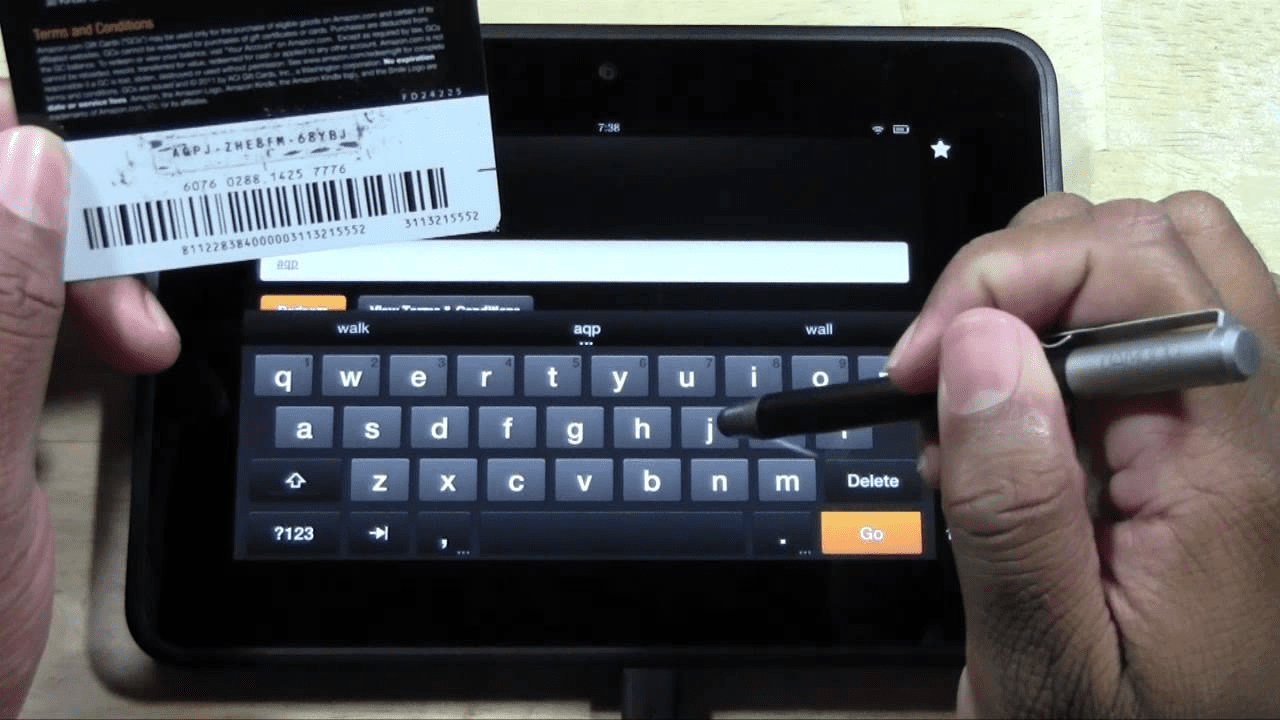
Here is the part many users get wrong: most e-ink Kindles – the basic Kindle, Paperwhite, Oasis, and Scribe – do not have a built-in field for entering a gift card code. Redemption happens through your account, not the reader itself.
If you are using one of those devices, redeem the card through the Amazon Shopping app or a web browser signed in to the same account. The balance then syncs to your Kindle automatically, usually within a minute.
On a Fire tablet, open the Amazon Shopping app, go to your account, and redeem the code there the same way you would on the web.
How to Apply the Balance to a Kindle Purchase
Once the funds are in your account, applying them is mostly automatic. By default, Amazon spends your gift card balance first on one-time digital purchases before touching any card on file.
The steps below show how to buy Kindle books using a gift card balance and confirm that the balance is applied correctly.
Step 1: Buy a Kindle Book (Web or Device)
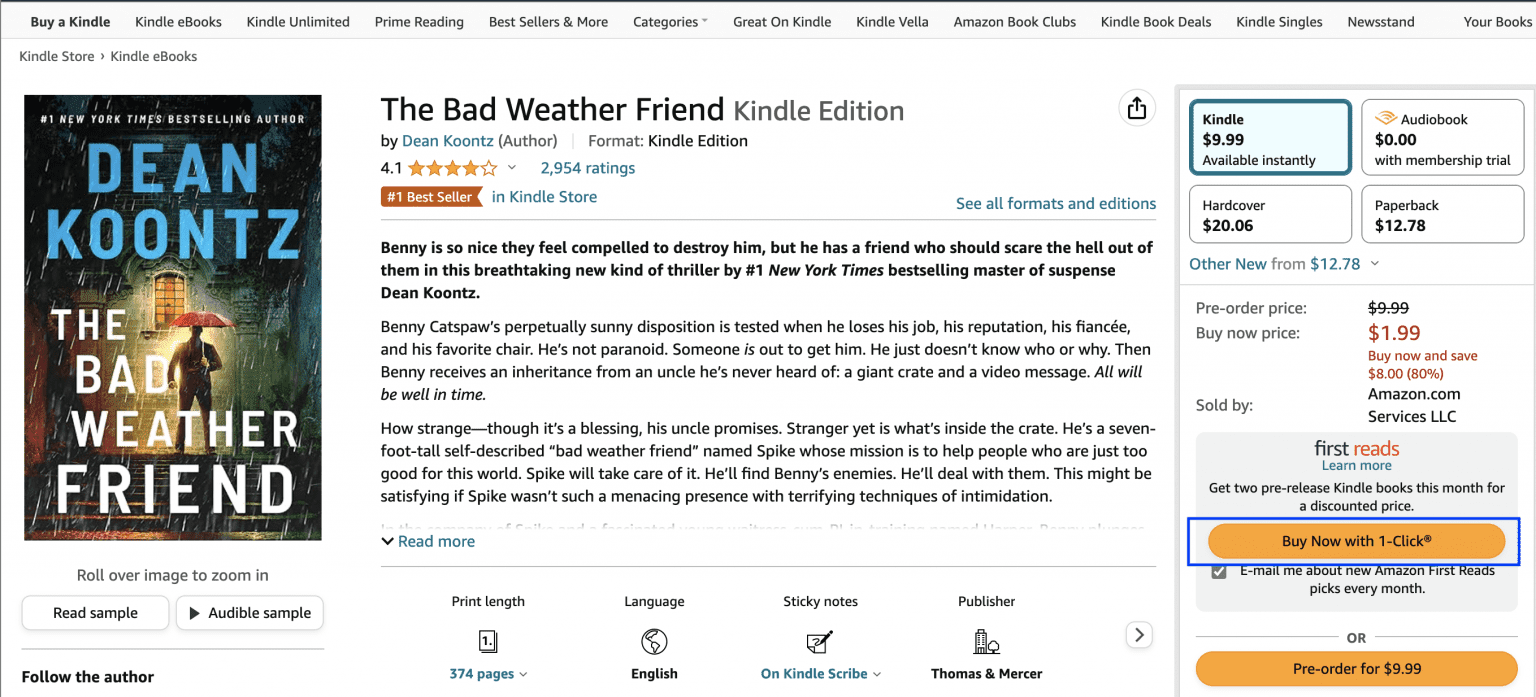
To use an Amazon gift card to buy Kindle books:
- Open the Kindle Store on the web or in the Kindle app and find the title you want.
- On the product page, choose Buy now with 1-Click (or Add to Cart, then check out).
- Amazon deducts the price from your gift card balance and delivers the ebook to your device or app instantly.
Because the balance behaves like cash, you can buy Kindle ebooks with a gift card balance one at a time and watch the total tick down with each purchase. If your reading device is registered to your account, the book will download automatically the next time it connects to Wi-Fi.
Step 2: Confirm the Gift Card Balance Is Applied Before Checkout
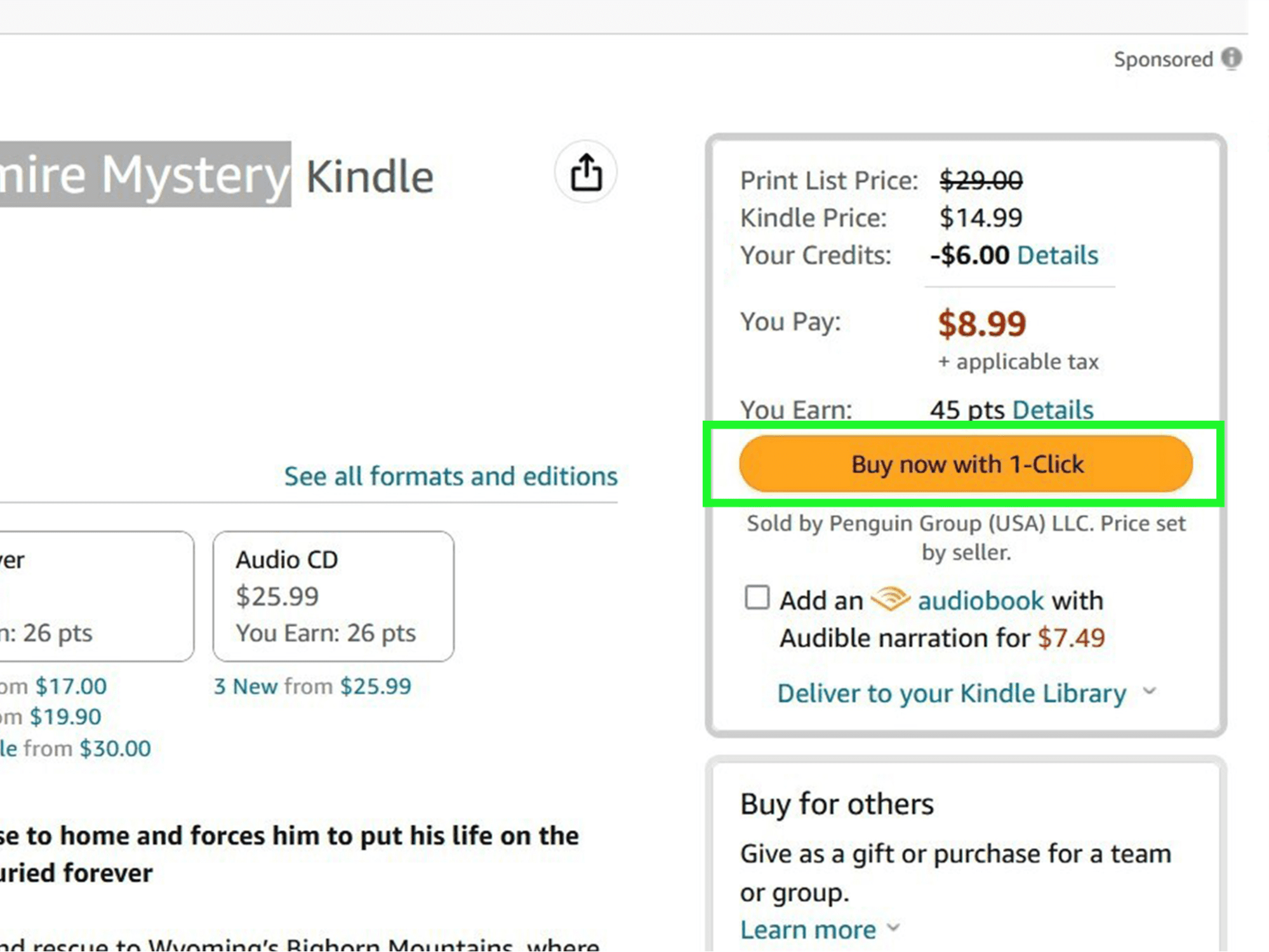
Always glance at the order summary before you confirm. It should show the gift card balance being used and the remaining total dropping to zero.
If a card is still being charged when you expected the balance to cover it, open Your Account – Payment options and turn on Use your Amazon balance first (in 1-Click and checkout settings).
When the balance is smaller than the price, Amazon simply splits the payment: it uses every available cent of the gift card and charges the difference to your default card. That makes it easy to spend down an odd amount like $4.37 instead of leaving it stranded.
Step 3: Buy Kindle Audiobooks and Magazines with the Same Balance
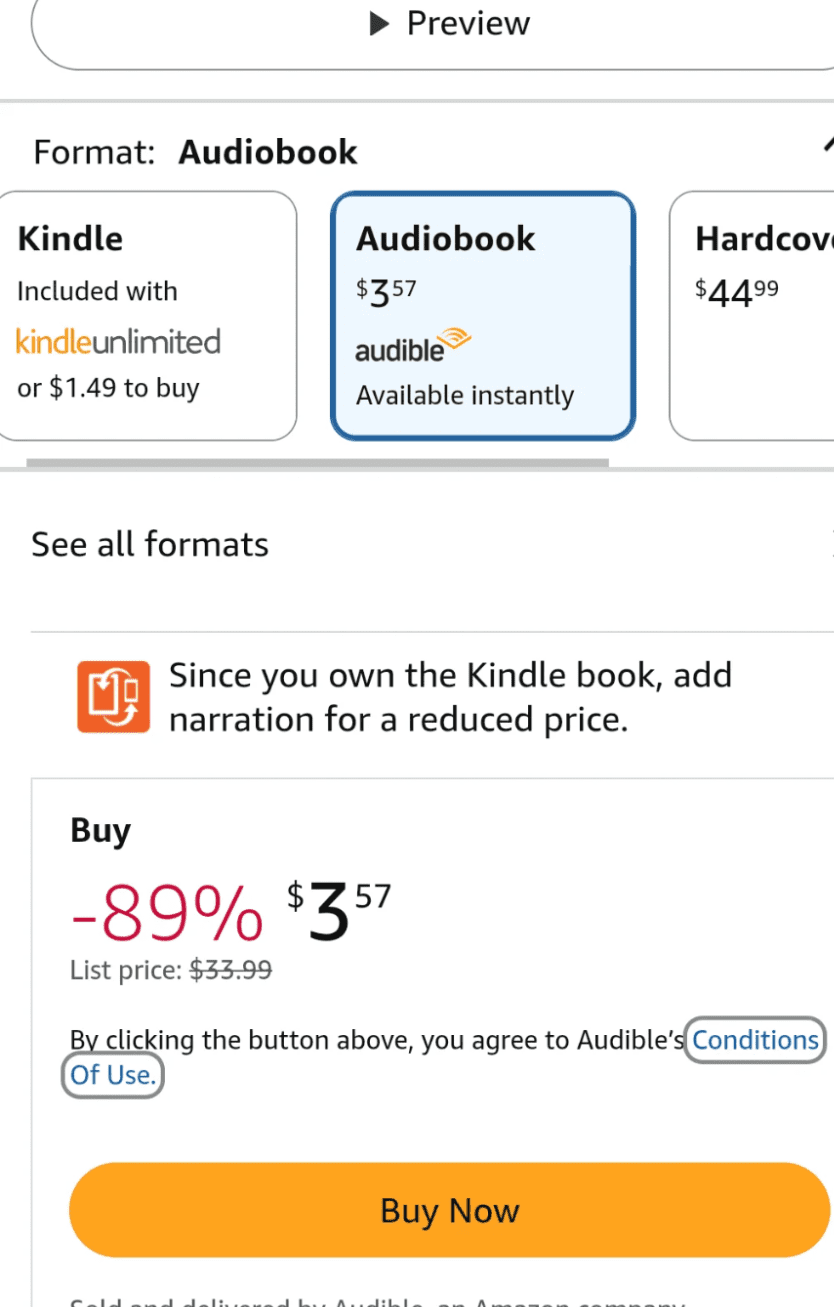
Your balance is not limited to ebooks. Individual Audible audiobooks bought directly through Amazon draw from your gift card balance, although Audible membership credits are a separate product; the balance does not cover them.
Digital magazines and newspapers in the Kindle Newsstand work the same way – the funds apply at checkout and to future renewals while the balance lasts.
You can also put an Amazon gift card toward Kindle Unlimited. Amazon does not sell a separate Kindle Unlimited card, but once your balance is loaded, the monthly fee can be deducted from it.
Two things to keep in mind: a free trial may still ask for a card on file, and a default card can quietly override the balance on recurring charges. To avoid that, set your Amazon balance as the first payment method and keep enough loaded to cover each renewal.
Best Place to Sell Your Amazon Gift Card – Prestmit
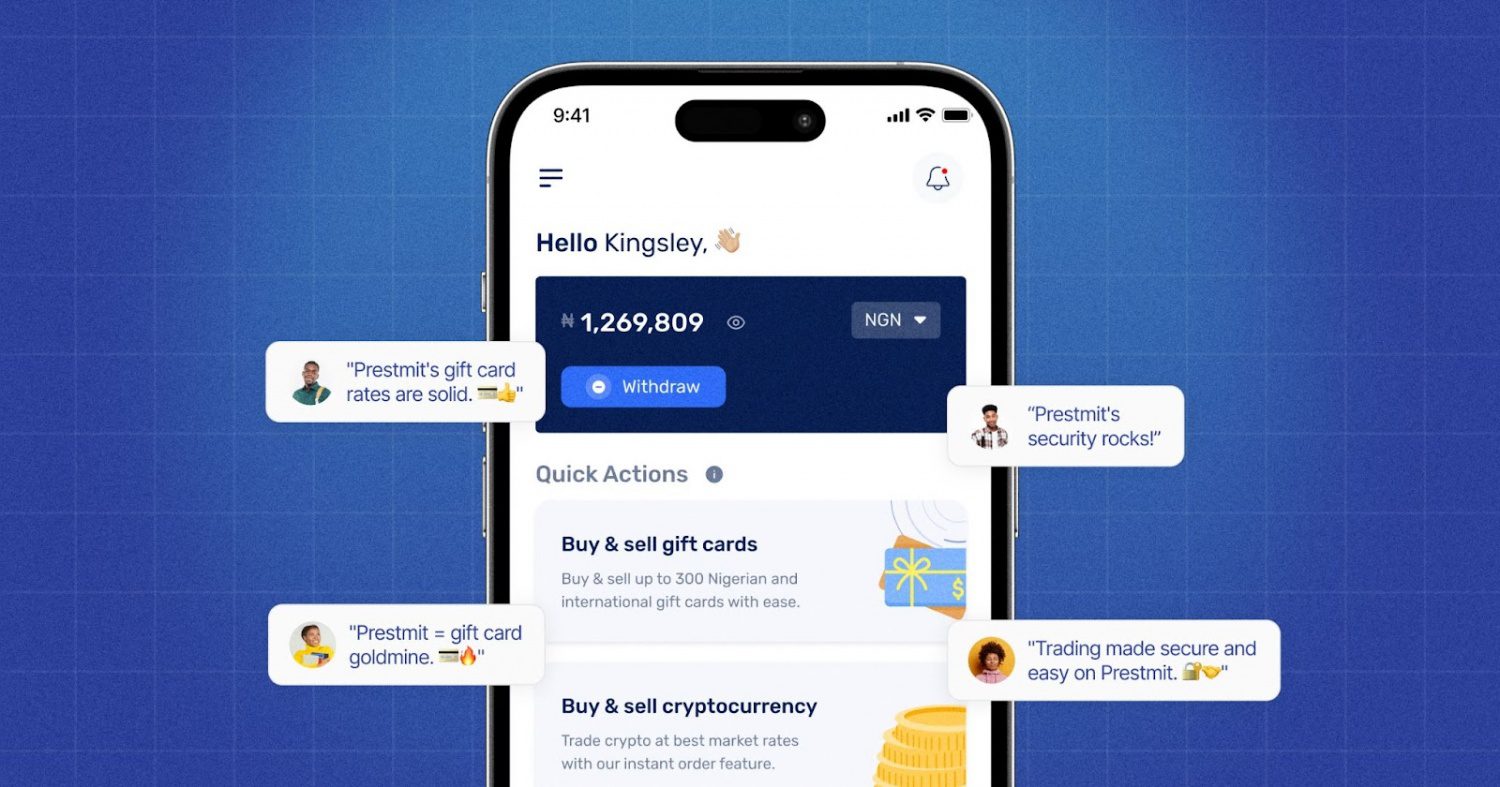
Sometimes a regional lock or storefront mismatch makes your Amazon gift card completely unusable on your Kindle. When that happens, your balance isn’t lost; you can sell Amazon gift cards instantly on Prestmit.
The platform eliminates the doubts of selling your Amazon gift card by offering a live, in-app gift card rate calculator that updates in real time, ensuring you get the most competitive market rates transparently. You can choose to save or spend immediately.
Prestmit provides financial flexibility, allowing you to withdraw your earnings instantly into Naira, Cedis, USD, or cryptocurrency.
Transactions are built for speed and complete peace of mind. The moment your card is verified, the platform triggers instant auto-withdrawals directly to your local bank account.
This entire ecosystem is heavily protected by an advanced SSL encryption, 2FA, and biometric logins, and backed by a dedicated customer support team available 24/7 for your hassle-Free experience.
How to Sell Your Amazon Gift Card on Prestmit (Step-by-Step)
To sell your gift cards on Prestmit, follow these simple steps:
Step 1: Create an account
Visit the Prestmit website or download the Prestmit app from the Google Play Store or App Store.
Sign up and complete the account setup process.
Step 2: Go to the Gift Card section
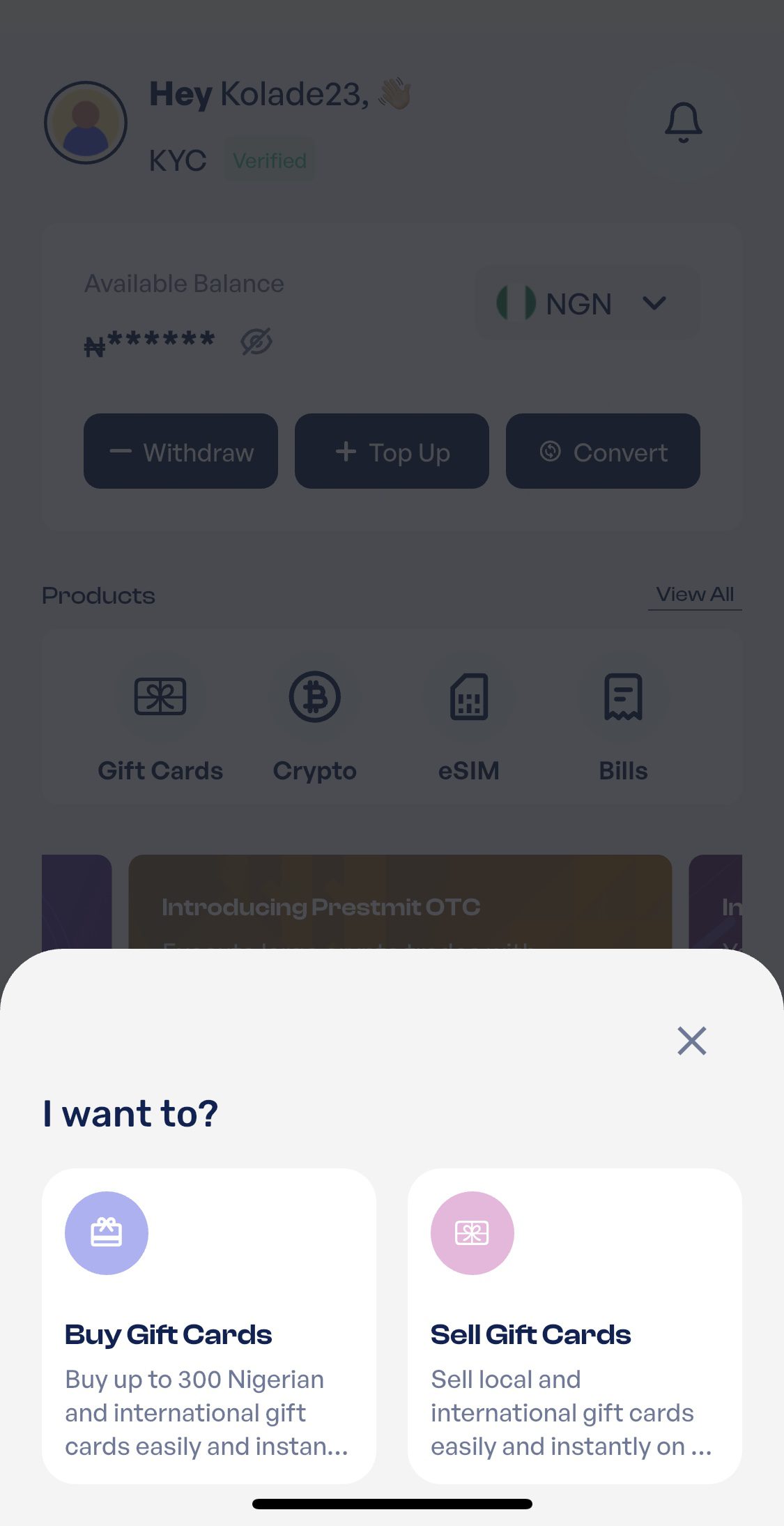
Screenshot
Log in to your account, and click on the Gift Card section on your dashboard, then select the option to sell gift cards.
Click on the option to Sell Gift Card
Step 3: Choose Payout Method
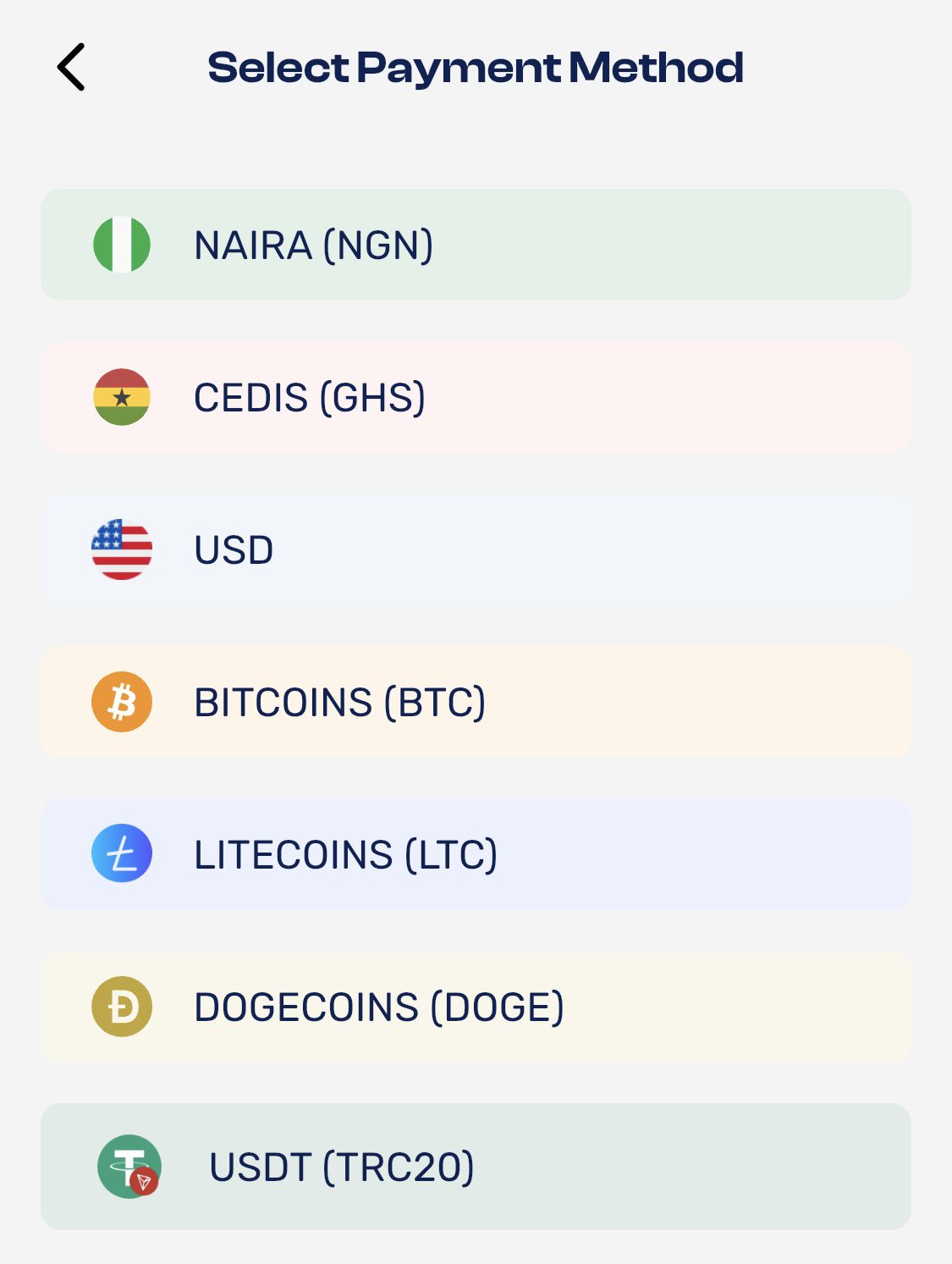
Choose your preferred payout currency. Prestmit supports payments in Naira (NGN), Cedis (GHS), USD, and cryptocurrency.
Step 4: Choose the Gift Card Category
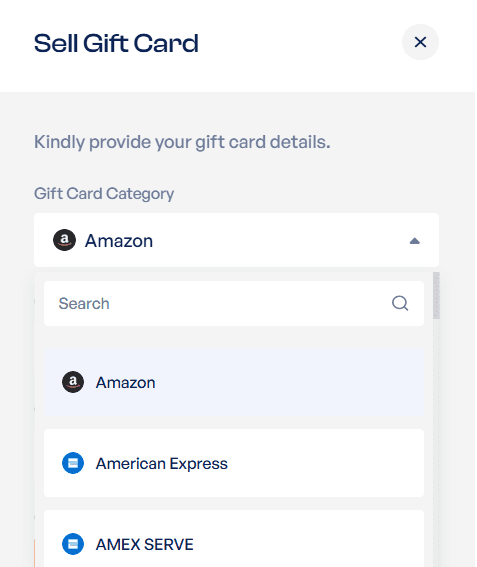
Choose Amazon as the gift card category, then select the card type.
Provide the required details about your card, including the card value and type, as prompted.
Step 5: Submit your card details
Enter the necessary card information and upload any required images or codes, depending on whether you have a physical card or an eCode, then submit.
Step 6: Complete your transaction
Review your submission and proceed with the transaction. Once your Amazon gift card is verified, your payment will be processed.
Prestmit’s features make the payout flexible. You can hold your money in a USD wallet to keep its dollar value, convert between Naira, Cedi, and USD inside the app, or even turn loyalty gift points into dollars.
Your account and transactions are protected with SSL encryption, two-factor authentication, and biometric login, and support is available 24/7 if anything comes up. If you have several cards sitting idle, you can also convert any gift card to cash the same way.
Frequently Asked Questions
1. Can I use an Amazon gift card to pay for a Kindle Unlimited subscription?
Yes, you can use your gift card balance for Kindle Unlimited, but you must first link a valid credit or debit card to your Amazon account for recurring billing backup. Once the card is linked, Amazon will automatically deduct the monthly subscription fee from your gift card balance before charging your payment card.
2. Why is my Amazon gift card balance not showing up on my Kindle device?
Your gift card balance might not appear if your Kindle device is registered to a different Amazon account than the one where you redeemed the code. To fix this, verify your login details on both your web browser and Kindle settings to ensure they are fully synced to the exact same profile.
3. Can I buy Kindle books on the Kindle app for iOS or Android using a gift card?
Due to app store policy restrictions, you cannot purchase Kindle books directly inside the iOS or Android Kindle apps using any payment method, including gift cards. Instead, you must log into Amazon using a mobile or desktop web browser, buy the book there with your gift card balance, and it will instantly sync to your app library.
Conclusion
Knowing how to use an Amazon gift card on Kindle comes down to two steps: redeem the code to your Amazon balance, then let it apply automatically as you buy ebooks, audiobooks, magazines, or a Kindle Unlimited subscription.
Confirm the balance is selected at checkout, and you will rarely touch a card again. And when a card is locked to the wrong country and cannot be redeemed, you are not stuck with dead value – you can sell your Amazon gift card on Prestmit and walk away with cash you can actually use.