Table of Contents
There was a time when my cousin sent me an American Express gift card as a birthday gift. I wanted to get some items on Amazon and I had to first sell the gift card to purchase an Amazon gift card to shop on Amazon. I had no idea I could use an American Express gift card on Amazon until weeks later when I was chatting with my cousin and I told him what I did with the gift card he sent to me. He laughed and told me I could have used the American Express gift card to make purchases on Amazon without needing to sell the gift card first.
With just a little setup, you can also use your American Express gift card to shop on Amazon.
In this article, we’ll take you through how you can add your AMEX gift card as a payment method on Amazon, how you can shop with it, how to reload your Amazon account balance using it, and more.
Can You Use an American Express Gift Card on Amazon?
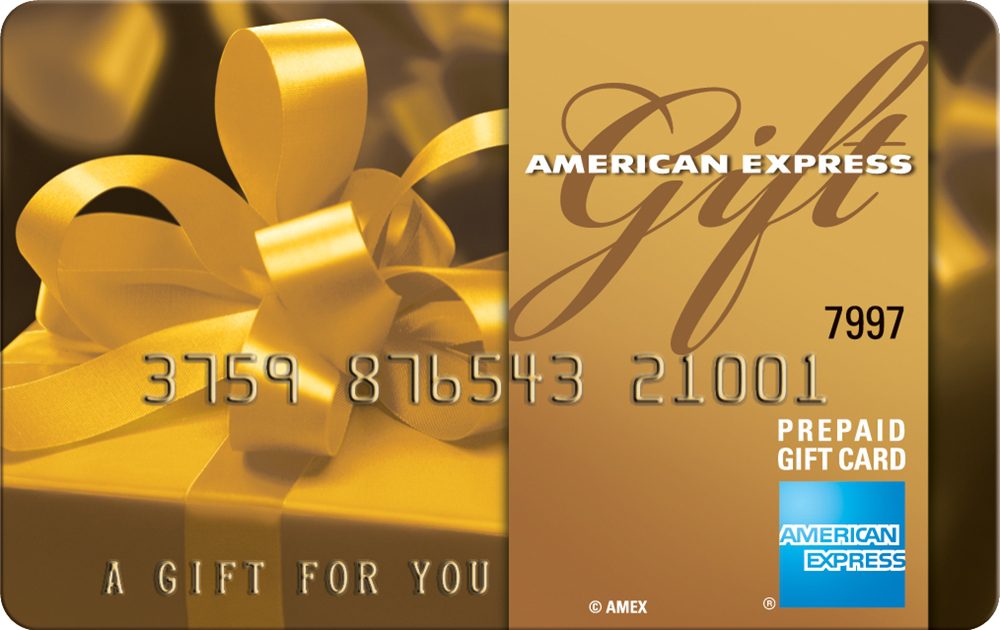
Yes, you can use an American Express gift card on Amazon but it can come with a few hurdles.
First, Amazon requires a valid billing address to verify any card. Most gift cards don’t come with one attached, so if you don’t register it yourself, your payment will likely fail.
Even if you get past that, there’s another issue. Amazon doesn’t allow you to split payments across multiple cards. So if your gift card balance is lower than your order total, the transaction will be declined. That’s why using an American Express gift card directly at checkout doesn’t always work smoothly.
But there’s a simple way around all of this.
Instead of struggling at checkout, you can use your gift card to add funds to your Amazon balance first. Once you do that, you can shop normally without any of these issues.
Requirements for Using an American Express Gift Card on Amazon
1. An active gift card with enough balance
Before anything else, make sure your AMEX gift card is valid and active, and has enough funds to cover your purchase or the amount you plan to add to your Amazon balance. An inactive or partially used card won’t work, no matter how carefully you follow the steps.
If you’re not sure it’s activated, follow these simple steps:
- Go to the official American Express Gift Card activation site:
- Enter your card number, expiration date, and CVV
- Follow the prompts to complete activation
2. A registered billing address
Amazon requires a valid billing address to verify any card. Most prepaid gift cards don’t come with a name or address attached, so you’ll need to add one yourself. Without it, Amazon’s system won’t accept the card.
Here’s how to register your card:
- On the same American Express Gift Card site, log in with your card number, expiration date, and CVV
- Enter your name, street address, city, state, and ZIP code
- Make sure the address you enter matches what you’ll use on Amazon
- Save your information and confirm the card is registered
3. A verified Amazon account
Your account should be verified and free of restrictions. Attempting to use a gift card on a brand-new or limited account can trigger declines, even if the card is valid and correctly registered.
Once you’ve checked off these three things, you’re ready to add your AMEX gift card to Amazon and start shopping without frustration.
Step-by-Step Guide to Add Your American Express Gift Card to Amazon
Here are the simple steps to link your American Express gift card to your Amazon account.
Step 1: Visit the official Amazon website and log in
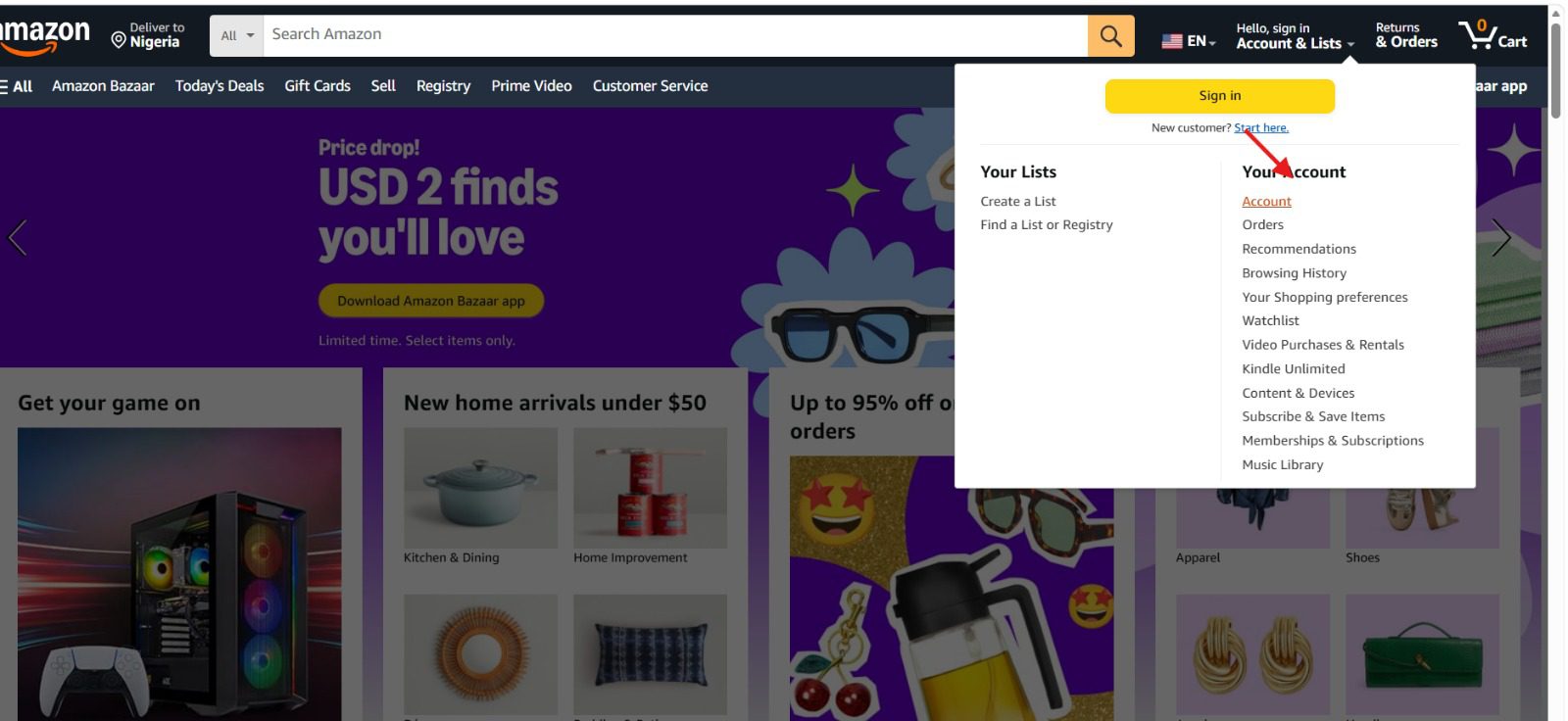
The first step is to open Amazon.com in your browser or app, then log in with your verified account. If you don’t have an account, you can quickly create one in minutes by following the on-screen prompts.
Step 2: Go to Payment options
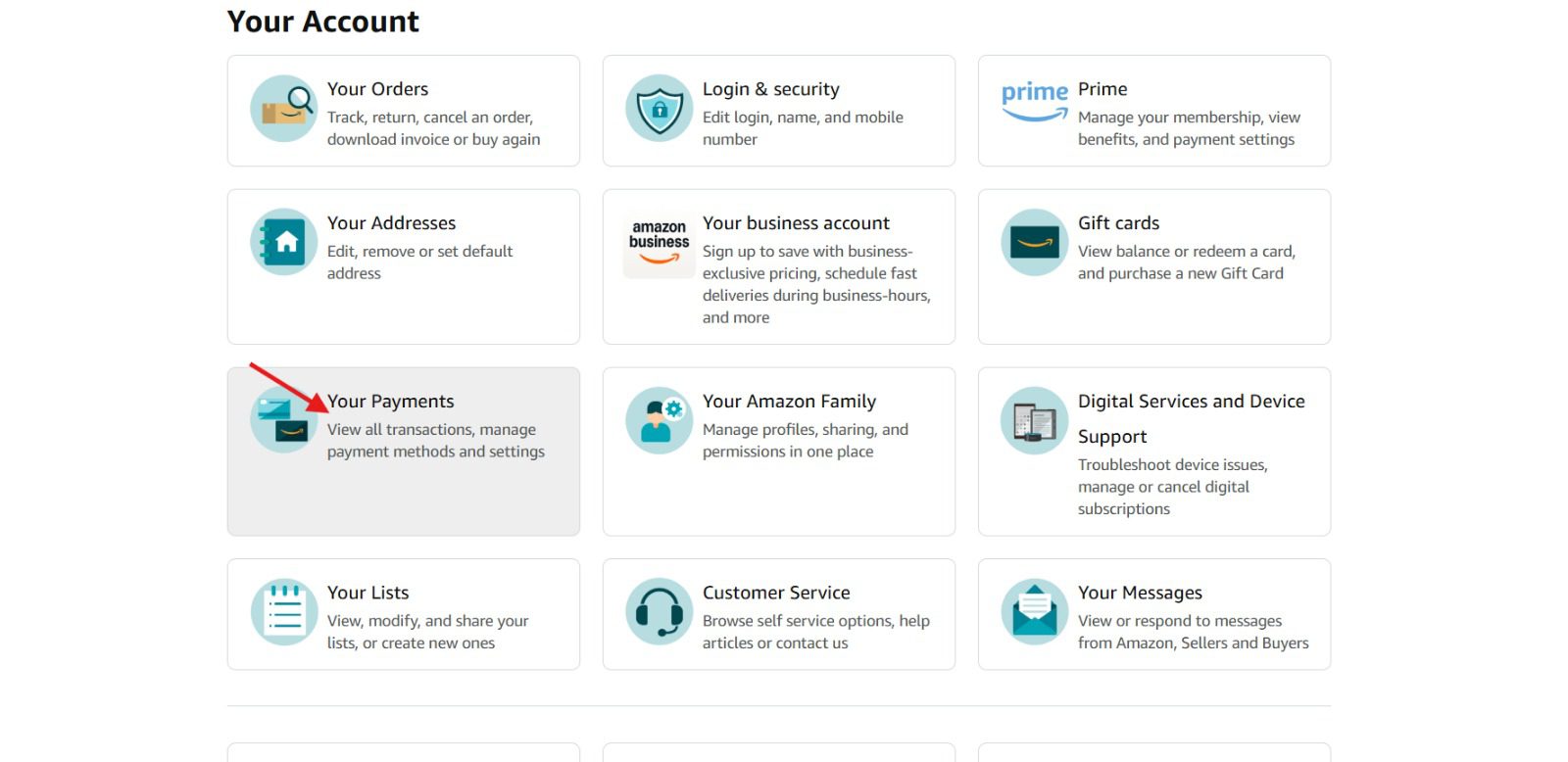
On the top right-hand side of the page, hover over “Accounts & Lists” and click “Your Account.” Then scroll down and select “Payment options.”
Step 3: Add a Payment method
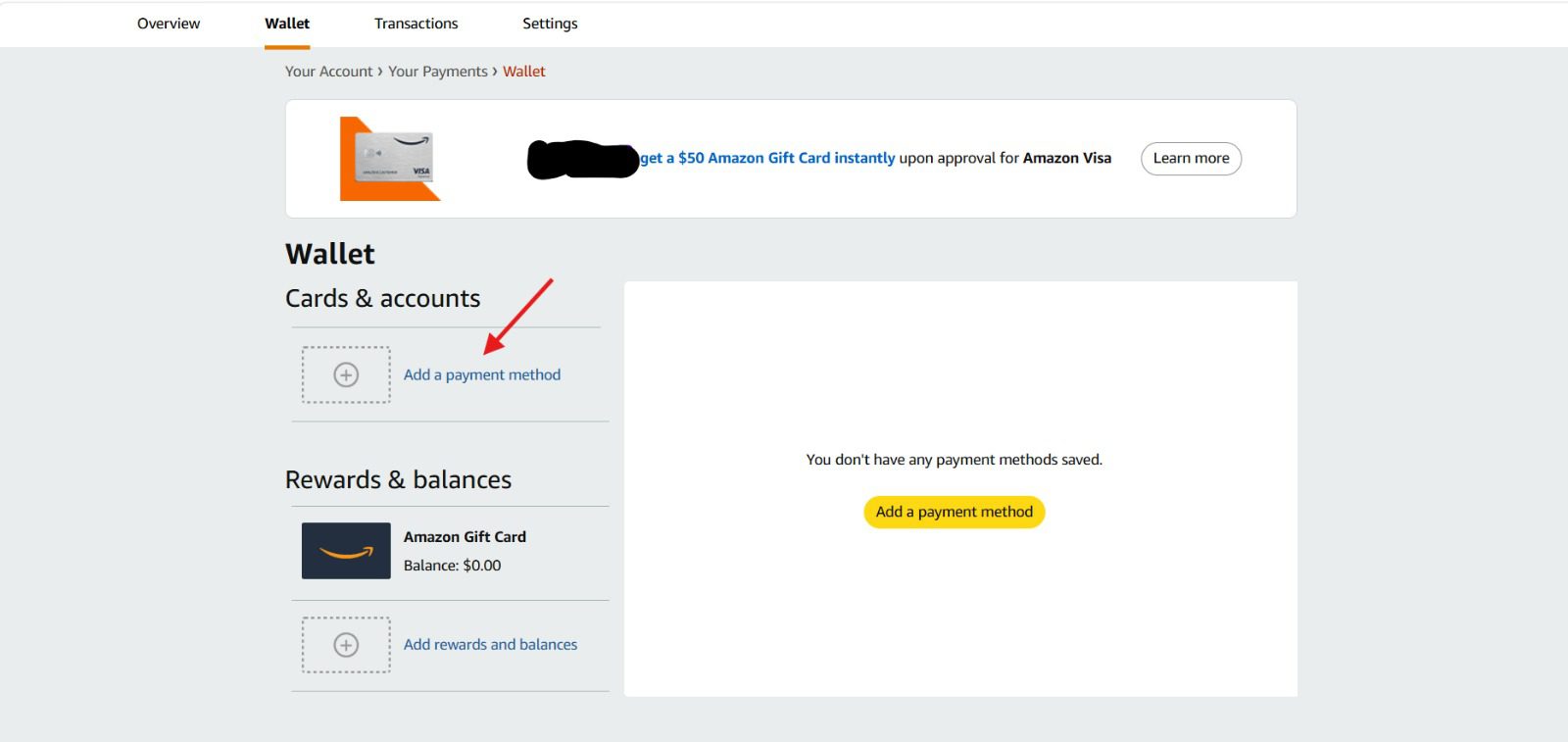
Next, click on “Add a payment method” to view the available payment options.
Step 4: Add a credit or debit card
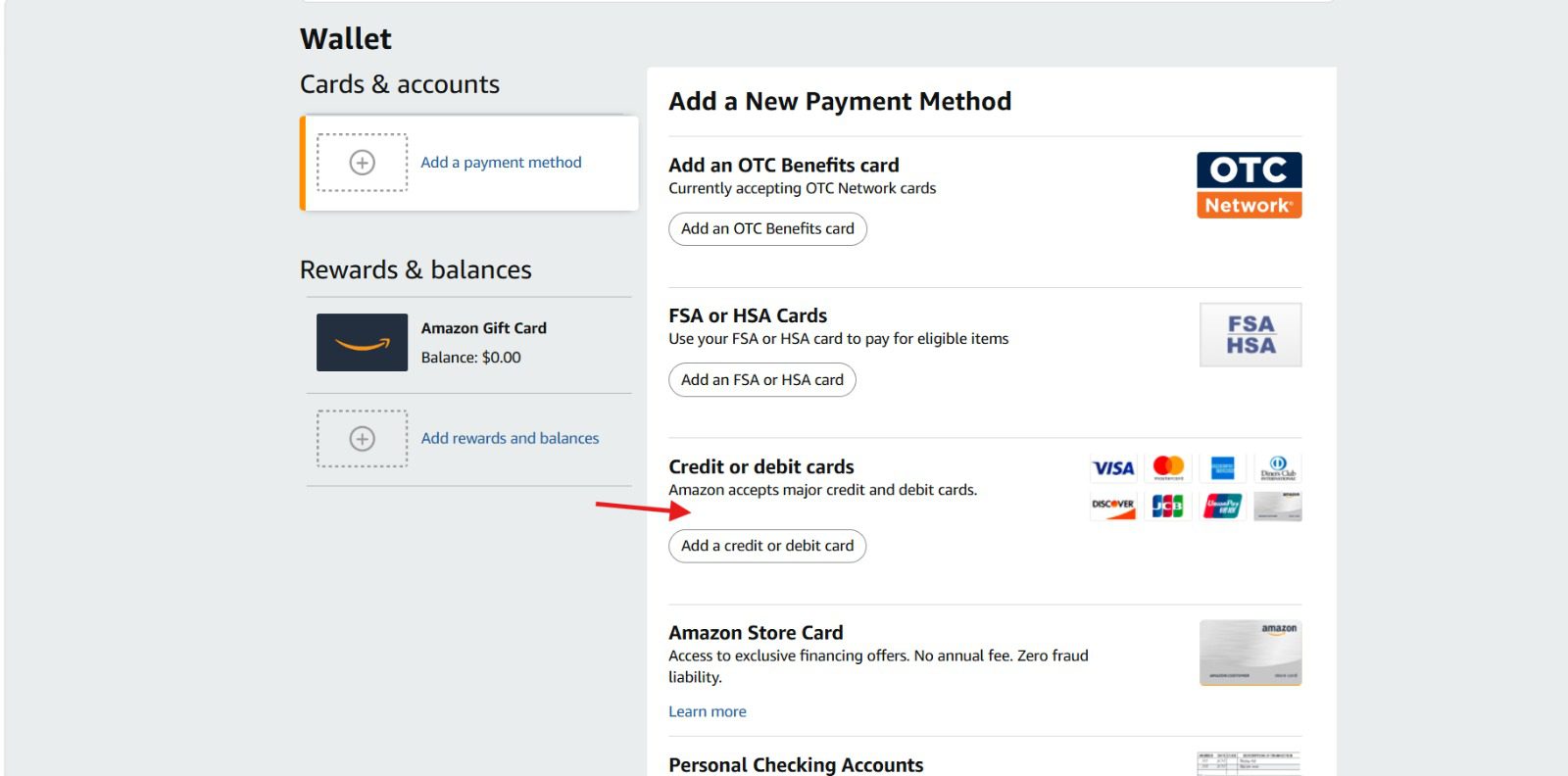
From the list of available payment methods, select “Add a credit or debit card.”
Step 5: Enter your American Express gift card details
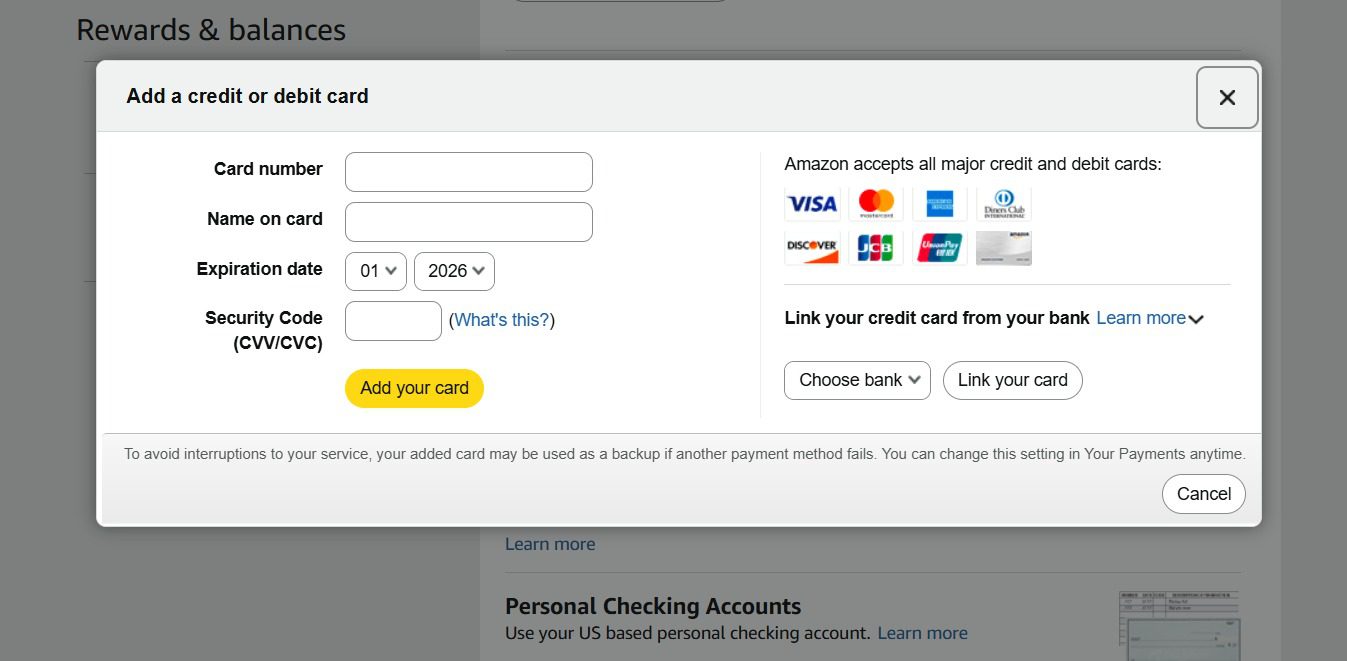
Now, enter your gift card number, expiration date, and CVV. Then add your billing address. Make sure the billing address matches the one you registered on the AMEX site.
Step 6: Save the card
Click Add Your Card. Amazon may verify the card by temporarily authorizing a small amount. Don’t worry, this won’t charge your card permanently.
You’re now ready to shop and pay with your AMEX gift card on Amazon, and that’s what we will cover next.
How to Use Your American Express Gift Card to Pay on Amazon
We‘ve already concluded the first steps, so instead of starting over, we’ll just continue from where we left off.
Once your AMEX gift card is linked to your account, using it to pay for purchases is pretty straightforward. Here’s how to do it:
Step 1: Add items to your cart
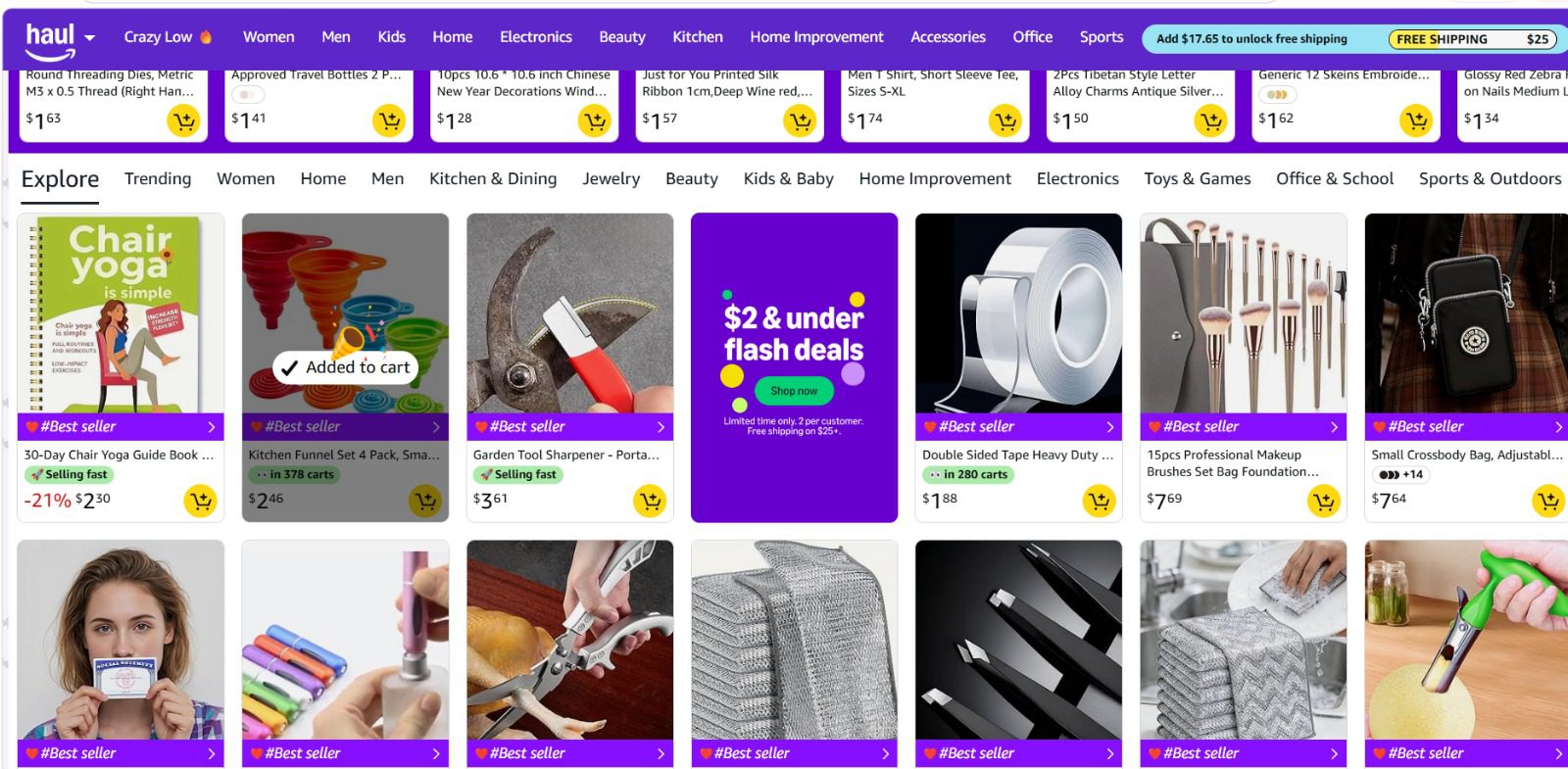
Browse Amazon and add the items you want to buy to your shopping cart, just like you normally would.
Step 2: Proceed to checkout
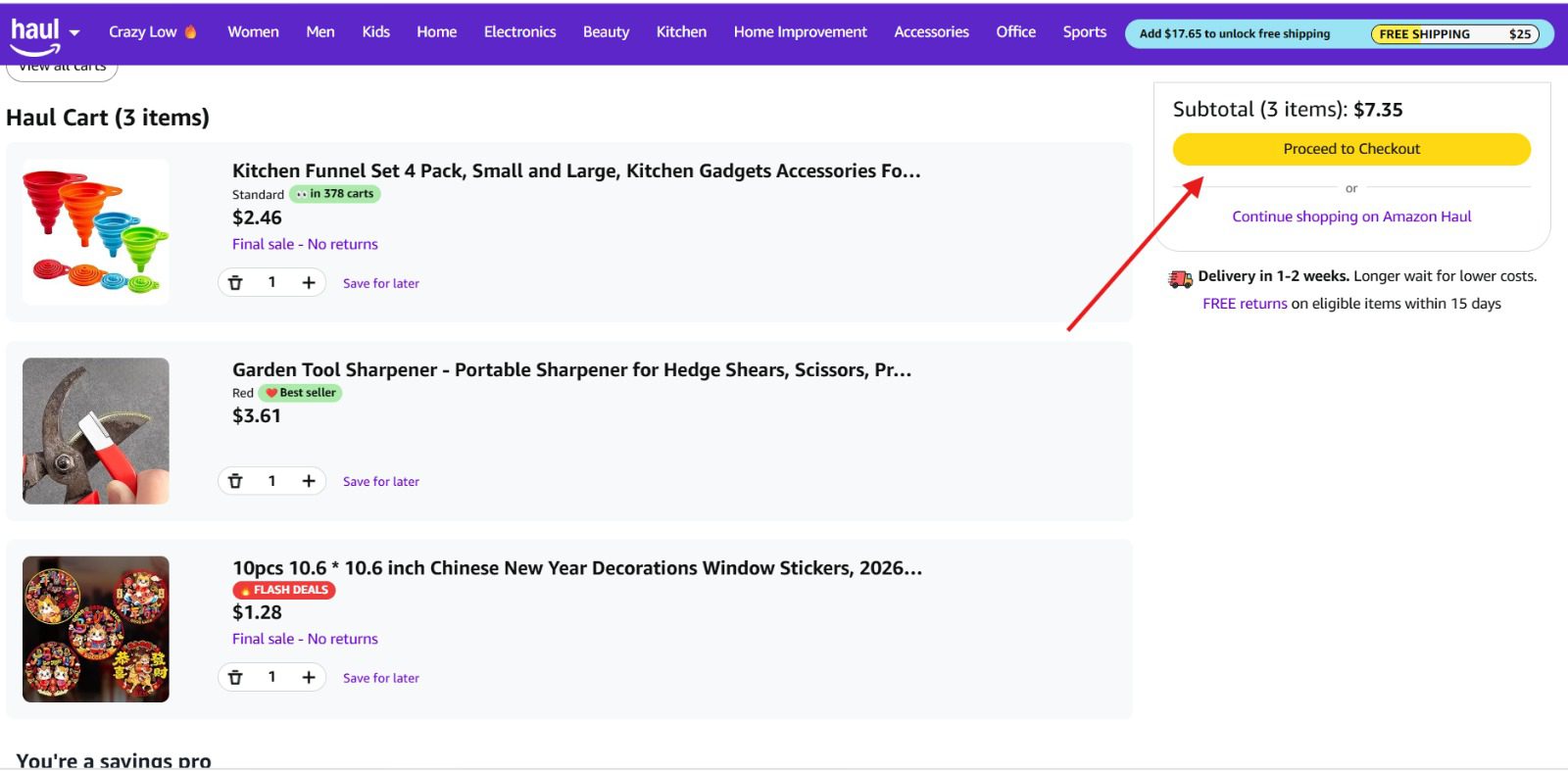
When you’re done shopping, click “Cart” and then “Proceed to checkout.”
Step 3: Select your AMEX gift card as payment
On the Payment Method page, choose your linked AMEX gift card. Make sure the total cost of your order does not exceed the card balance, because Amazon does not allow splitting payments across multiple cards. If your purchase is higher than your gift card balance, the transaction will be declined.
Step 4: Confirm your billing details
Amazon will automatically use the billing address linked to the card. Double-check that everything matches your AMEX registration to avoid any declines.
Step 5: Place your order
Review your order summary, then click “Place your order.” Your AMEX gift card will be charged, and that’s it!
How to Convert Your American Express Gift Card to an Amazon Balance
If you want a smoother experience, there’s an easier way to do this; just reload your Amazon balance. This is the method I personally prefer because converting your AMEX gift card into an Amazon balance almost always means your payments go through without any issues.
Here’s how to do it:
Step 1: Go to the Amazon Gift Card section
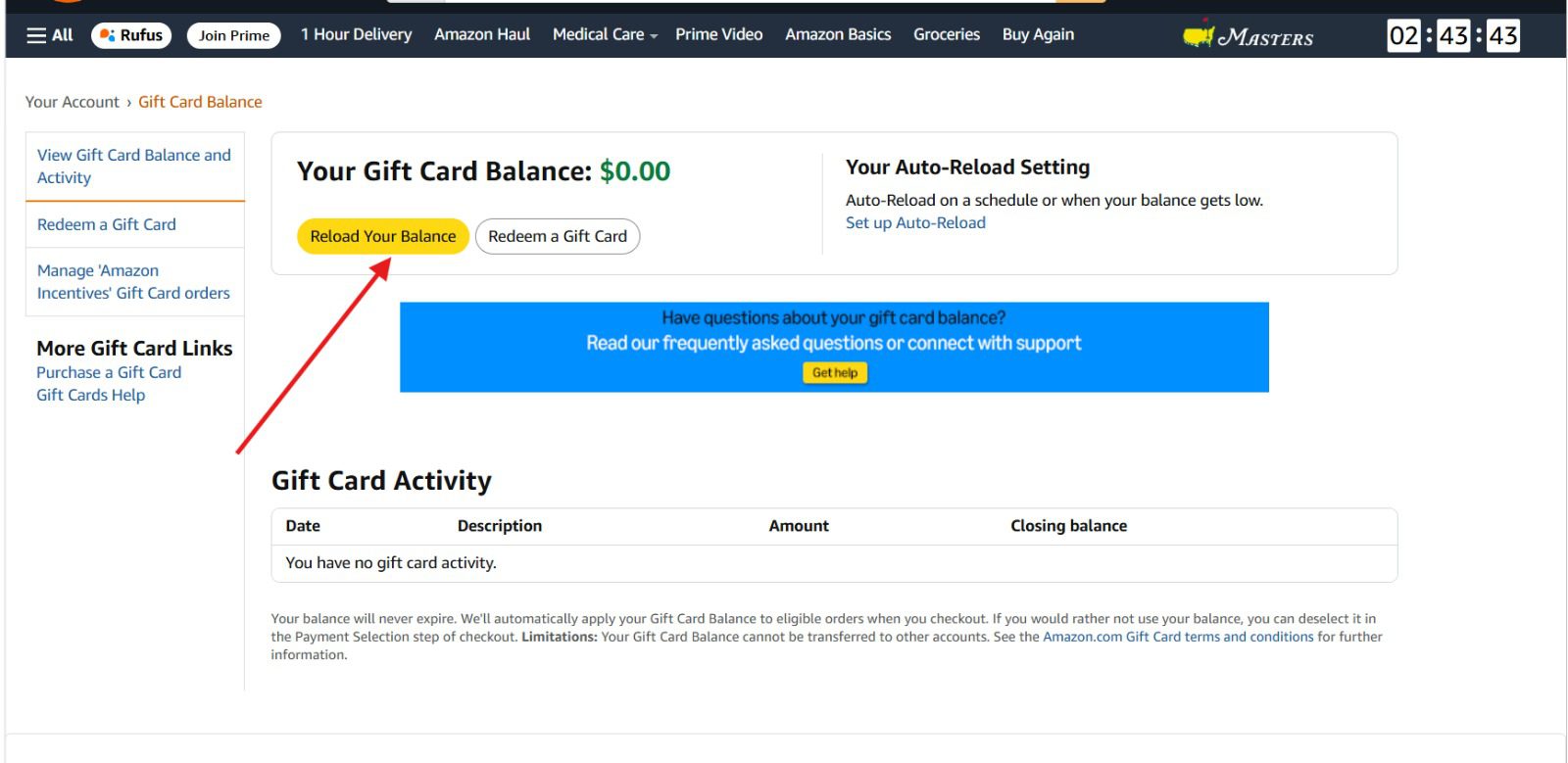
Visit amazon.com/gp/css/gc/balance and click on “Reload your balance.”
Step 2: Enter the amount you want to add
Type in the amount you want to transfer from your AMEX gift card to your Amazon balance. It’s best to enter an amount slightly lower than your card balance to avoid any issues.
Step 3: Select your AMEX gift card as payment
Choose your linked AMEX gift card as the payment method.
Step 4: Complete the transaction
Click “Reload” or “Buy Now” to add the funds to your Amazon account.
Once the payment goes through, the money will be added to your Amazon balance, and you can use it just like a regular Amazon gift card.
Common Issues When Using an American Express Gift Card on Amazon (And Fixes)
1. Your payment keeps getting declined
In most cases, it happens because your gift card isn’t registered with a billing address, or the address you entered on Amazon doesn’t match what’s on the card. It can also happen if your card balance is lower than the total cost of your order.
Fix:
Double-check that your card is registered properly and that the billing address matches exactly. Also, make sure your purchase does not exceed your card balance.
2. The card is showing as invalid
If Amazon says your card is invalid, it usually means something is off with the card details.
This could be due to entering the wrong card number, expiration date, or CVV. In some cases, the card may not have been activated or verified yet.
Fix:
Go back and carefully re-enter your card details. If the issue continues, check your card balance or revisit the activation page to confirm that the card is active.
3. Insufficient balance
Amazon does not allow you to split payments across multiple cards. So if your AMEX gift card doesn’t fully cover the cost of your order, the transaction will fail.
Fix:
Make sure your purchase total is within your card balance. Alternatively, convert your gift card to your Amazon balance first, then complete your purchase.
4. The card works online, but still won’t go through on Amazon
Sometimes the card is active, has enough balance, and even works on other sites, but still fails on Amazon. This usually happens because Amazon’s payment system is stricter with prepaid cards, especially AMEX gift cards, which don’t always behave like regular debit cards.
Fix:
Use the Amazon balance reload method. This usually bypasses the issue completely.
Frequently Asked Questions (FAQs) about Using an American Express Gift Card on Amazon
1. Can I use an American Express gift card on Amazon?
Yes, you can use an American Express gift card on Amazon, but not always directly at checkout. The most reliable way is to add the card to your account or convert the balance into your Amazon balance before making a purchase.
2. Can I transfer my AMEX gift card balance to my Amazon account?
Yes, you can. You can reload your Amazon balance using your AMEX gift card. Just go to the Amazon Reload page, enter the amount, select your card, and complete the transaction.
3. Can I split payments with an AMEX gift card on Amazon?
No, Amazon doesn’t let you split a purchase across multiple cards at checkout. If your gift card doesn’t fully cover your order, the payment will be declined.
4. Why is my American Express gift card not working on Amazon?
Most of the time, it’s because the card isn’t registered with a billing address, or the purchase exceeds your card balance. Double-check your card details, make sure the billing address matches, or try converting it to your Amazon balance for a smoother payment.
Conclusion
Using an American Express gift card on Amazon doesn’t have to be stressful. Whether you link it directly to your account or convert it to your Amazon balance, the process is simple once you know the steps.
By following this guide, you can avoid declined payments, leftover balances, and all the little headaches that usually come with prepaid cards.
Now, go ahead, shop confidently, and make that AMEX gift card work for you!
Last updated on April 10, 2026